Ever wondered what keeps your computer running smoothly behind the scenes? It’s not magic—it’s system files. These hidden heroes manage everything from booting up to running apps, and knowing how they work can give you real control over your device.




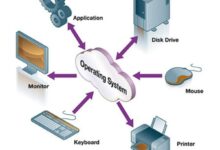

What Are System Files and Why They Matter

System files are the backbone of any operating system. They’re not just random bits of code—they’re carefully designed components that ensure your computer starts, runs, and communicates properly. Without them, your device would be nothing more than expensive hardware with no soul.
Definition and Core Function
System files are pre-installed files created by the operating system developer—like Microsoft, Apple, or Linux distributors—to manage hardware, software, and user interactions. These files include drivers, configuration settings, bootloaders, and core executables that launch essential services.
- They control how your OS interacts with hardware like your GPU, keyboard, and storage drives.
- They manage memory allocation, process scheduling, and security protocols.
- They ensure that user-installed applications can run in a stable environment.
For example, in Windows, ntoskrnl.exe is a critical system file that acts as the Windows NT kernel, handling everything from process management to memory handling. If this file is corrupted, your system may fail to boot. You can learn more about core Windows system files on Microsoft’s official documentation.
Difference Between System Files and User Files
Understanding the distinction between system files and user files is crucial for maintaining system stability. User files are documents, photos, music, and personal data created or downloaded by you. System files, on the other hand, are protected, hidden, and usually locked from direct modification.
- User files are stored in directories like
Documents,Downloads, orPictures. - System files reside in protected folders such as
C:WindowsSystem32(Windows),/System(macOS), or/usr/bin(Linux). - Modifying system files without proper knowledge can lead to system crashes or security vulnerabilities.
“System files are like the DNA of your operating system—they define how it behaves, responds, and survives.” — Tech Infrastructure Expert, Dr. Elena Rodriguez
Types of System Files Across Operating Systems
Every operating system uses a unique set of system files tailored to its architecture and design philosophy. Whether you’re using Windows, macOS, or Linux, the types of system files vary in naming, location, and function—but their purpose remains the same: to keep the system alive and functional.
Windows System Files
Windows relies heavily on a structured hierarchy of system files, many of which are located in the System32 and WinSxS folders. These files include executables, dynamic link libraries (DLLs), and configuration files.
- ntldr or winload.exe: Boot loader files responsible for starting the OS.
- hal.dll: Hardware Abstraction Layer file that allows the OS to interact with different hardware configurations.
- registry hives (e.g.,
SYSTEM,SOFTWARE): Binary files storing system-wide settings and configurations.
One of the most critical aspects of Windows system files is their dependency chain. For instance, if kernel32.dll is missing or corrupted, most applications will fail to launch. Microsoft provides tools like System File Checker (SFC) to repair damaged system files. You can run sfc /scannow in Command Prompt to fix common issues. Learn more at Microsoft Support.
macOS System Files
macOS, built on Unix, organizes its system files in a hierarchical structure under the /System, /Library, and /usr directories. Unlike Windows, macOS hides many of these files by default to prevent accidental modification.
- mach_kernel: The core of macOS, responsible for process scheduling and memory management (though modern versions use
kernelinstead). - launchd: A master process manager that starts and manages system services at boot.
- plist files: Property list files that store configuration data for apps and system settings.
Apple enforces strict permissions on system files through System Integrity Protection (SIP), introduced in OS X El Capitan. SIP prevents even administrators from modifying critical system files, enhancing security. You can read more about SIP on Apple’s support page.
Linux System Files
Linux distributions use a standardized file system hierarchy (FHS) to organize system files. These files are typically stored in directories like /bin, /sbin, /etc, and /lib.
- vmlinuz: The compressed Linux kernel image loaded during boot.
- init or systemd: The first process started by the kernel, responsible for initializing the rest of the system.
- configuration files in /etc: Text-based files that control network settings, user accounts, and service behavior.
One advantage of Linux is its transparency—most system files are readable and modifiable by advanced users. However, this also means mistakes can break the system. Tools like fsck (file system check) and grub-repair help recover from system file corruption. The Linux Documentation Project offers a comprehensive guide to the file system hierarchy.
How System Files Enable Operating System Booting
The boot process is one of the most critical functions managed by system files. When you press the power button, a sequence of system files springs into action, transforming your dormant machine into a working computer.
BIOS/UEFI and the Bootloader
The journey begins with the BIOS (Basic Input/Output System) or its modern counterpart, UEFI (Unified Extensible Firmware Interface). These firmware interfaces perform a Power-On Self-Test (POST) and then look for a bootloader—a small program that loads the operating system.
- In Windows, the bootloader is typically
bootmgrorwinload.efi(for UEFI systems). - In Linux, GRUB (Grand Unified Bootloader) is commonly used.
- On macOS, the boot process is handled by
iBootandboot.efi.
If the bootloader is missing or corrupted, you might see errors like “No operating system found” or “Operating System not found.” Recovery tools like Windows Recovery Environment or Linux Live USBs can restore these critical system files.
Loading the Kernel and Initialization
Once the bootloader locates the OS, it loads the kernel into memory. The kernel is the heart of the operating system and is itself a system file (e.g., ntoskrnl.exe in Windows, vmlinuz in Linux).
- The kernel initializes hardware drivers, sets up memory management, and starts essential system processes.
- It reads configuration files (like
/etc/fstabin Linux) to mount file systems. - It launches the init process or systemd, which then starts other services like networking and login managers.
During this phase, system files like ACPI tables help the kernel understand the computer’s hardware layout. Any corruption in these files can lead to boot failures or hardware detection issues.
User Space and Login Prompt
After the kernel is up and running, the system transitions to user space. This is where user-facing services start, including the graphical interface or command-line login.
- In Windows,
winlogon.exeandlsass.exehandle user authentication. - In Linux, display managers like GDM or LightDM start the GUI.
- In macOS,
loginwindowmanages the login screen.
These processes rely on system files stored in secure directories. For example, password hashes in Linux are stored in /etc/shadow, a protected system file accessible only to the root user.
Common Threats to System Files
Despite their importance, system files are not immune to threats. From malware to accidental deletion, several risks can compromise their integrity and bring your system to a halt.
Malware and Viruses
Malware often targets system files to gain deep access to the operating system. Rootkits, for example, modify or replace system files to hide their presence and maintain persistence.
- Ransomware may encrypt system files to prevent booting, forcing users to pay a ransom.
- Virus infections can overwrite critical DLLs, causing system instability.
- Fileless malware operates in memory but still manipulates system processes and files.
Antivirus software like Windows Defender or Malwarebytes scans system files in real-time to detect anomalies. However, sophisticated malware can evade detection by mimicking legitimate system processes.
Accidental Deletion or Modification
Users, especially those with administrative privileges, can accidentally delete or modify system files while troubleshooting or cleaning up their system.
- Using third-party “cleaner” tools that remove “unnecessary” files may delete essential system components.
- Manual deletion of files in
System32or/bincan render the OS unbootable. - Editing configuration files without backups can lead to misconfigurations.
Always create a system restore point or backup before making changes. On Linux, use cp to back up config files before editing them.
Hardware Failures and Disk Corruption
Physical issues like bad sectors on a hard drive or SSD failure can corrupt system files, leading to boot errors or system crashes.
- File system corruption can make system files unreadable.
- Power outages during updates may leave system files in an inconsistent state.
- Firmware bugs in storage devices can cause silent data corruption.
Tools like chkdsk (Windows), fsck (Linux), and First Aid in Disk Utility (macOS) can repair file system errors and recover corrupted system files.
How to Protect and Maintain System Files
Protecting system files is not optional—it’s essential for system stability and security. Fortunately, modern operating systems come with built-in tools and best practices to help you safeguard these critical components.
Using Built-in Repair Tools
Every major OS provides utilities to scan and repair damaged system files.
- Windows SFC (System File Checker): Run
sfc /scannowto verify and replace corrupted system files. - DISM (Deployment Image Servicing and Management): Use
Dism /Online /Cleanup-Image /RestoreHealthto repair the Windows image before running SFC. - macOS First Aid: Available in Disk Utility, it checks and repairs disk permissions and file system issues.
These tools rely on cached copies of system files stored in compressed form. For example, Windows stores backup components in the WinSxS folder, allowing SFC to restore missing or damaged files.
Enabling System Restore and Backups
System Restore creates snapshots of system files and settings at specific points in time. If a change causes instability, you can roll back to a previous state.
- Enable System Restore in Windows via Control Panel > System > System Protection.
- Use Time Machine on macOS to back up system files and user data.
- On Linux, tools like
rsyncorTimeshiftcan create system snapshots.
Regular backups ensure that even in the event of total system failure, you can restore your system files and get back up and running quickly.
Securing System Files with Permissions and Antivirus
Proper file permissions and security software are your first line of defense.
- Never run applications as administrator unless necessary.
- Enable System Integrity Protection (SIP) on macOS to prevent unauthorized changes.
- Use antivirus software with real-time scanning to detect malicious modifications.
On Linux, use chmod and chown to manage file permissions and prevent unauthorized access to system directories.
Advanced Management of System Files
For power users and IT professionals, managing system files goes beyond basic protection. It involves monitoring, scripting, and even customizing system behavior for performance or security.
Monitoring System File Changes
Tracking changes to system files can help detect intrusions or misconfigurations early.
- Use Windows Event Viewer to monitor file system events under
Securitylogs. - Tools like OSSEC or Wazuh provide file integrity monitoring (FIM) for servers.
- On Linux,
auditdcan log access and modification of critical system files.
For example, if /etc/passwd is modified unexpectedly, an alert can be triggered, indicating a potential security breach.
Scripting and Automation for System File Maintenance
Automation reduces human error and ensures consistent system maintenance.
- Create batch scripts in Windows to run
sfc /scannowweekly. - Use cron jobs in Linux to back up configuration files daily.
- Write PowerShell scripts to verify the integrity of critical system executables.
Example PowerShell script to check system file integrity:Start-Process sfc -ArgumentList "/scannow" -Verb RunAs
Customizing System Files (With Caution)
Advanced users may modify system files to customize behavior—such as editing the Windows hosts file to block ads or changing Linux kernel parameters for performance tuning.
- Always back up the original file before editing.
- Test changes in a virtual machine first.
- Document every modification for future reference.
For instance, editing /etc/sysctl.conf in Linux can improve network performance, but incorrect values may cause connectivity issues.
Recovering Corrupted or Missing System Files
When system files go missing or become corrupted, your system may fail to boot or behave unpredictably. Recovery is possible, but the method depends on the OS and severity of the damage.
Using Recovery Environments
Most operating systems include a recovery environment that can repair system files without a full reinstall.
- Windows Recovery Environment (WinRE) offers Startup Repair, System Restore, and Command Prompt access.
- macOS Recovery Mode (Cmd+R) allows reinstallation of the OS while preserving user data.
- Linux Live USBs can mount your system partition and restore files from backup.
In WinRE, you can run sfc /scannow or DISM commands to fix system file issues even when the OS won’t boot.
Reinstalling or Repairing the Operating System
If recovery tools fail, a repair install or clean reinstall may be necessary.
- A repair install replaces system files without deleting user data.
- A clean install erases everything and starts fresh—use only as a last resort.
- Always back up user data before proceeding.
Microsoft offers free Windows ISO downloads for repair installations. Visit Microsoft’s download page to get the official installer.
Data Recovery Tools and Professional Services
In extreme cases, professional data recovery tools or services may be needed.
- Tools like TestDisk or PhotoRec can recover deleted system partitions.
- Commercial software like Stellar Data Recovery supports system file recovery.
- For physical damage, professional labs can recover data from failed drives.
However, recovering system files from a corrupted drive is complex and not always successful. Prevention through regular backups is far more effective.
What are system files?
System files are essential components of an operating system that manage hardware, software, and core functions like booting and security. They are typically hidden and protected from user modification to prevent system instability.
Can I delete system files to free up space?
No, you should never manually delete system files. Doing so can cause your operating system to crash or become unbootable. If you need to free up space, use built-in tools like Disk Cleanup or remove user files instead.
How do I fix corrupted system files in Windows?
Use the System File Checker (SFC) tool by opening Command Prompt as administrator and running sfc /scannow. If that fails, run Dism /Online /Cleanup-Image /RestoreHealth first, then retry SFC.
Are system files the same across all computers?
No, system files vary by operating system and version. Windows, macOS, and Linux each have unique system files tailored to their architecture. Even within the same OS, different versions (e.g., Windows 10 vs. 11) use different system files.
Can antivirus software protect system files?
Yes, modern antivirus programs include real-time protection that monitors system files for unauthorized changes, helping prevent malware from modifying or replacing critical components.
System files are the invisible foundation of your computer’s operation. From booting up to running applications, they work silently but powerfully behind the scenes. Understanding what they are, how they function, and how to protect them is essential for every user. Whether you’re troubleshooting a crash, securing your system, or optimizing performance, respecting system files ensures your device remains stable, secure, and efficient. Always use built-in tools, maintain backups, and avoid unauthorized modifications. With the right knowledge, you can harness the true power of your operating system.
Recommended for you 👇
Further Reading: